Inbox view
The left sidebar (mailboxes, handling, folders, multi-inboxes, labels, accounts), the thread list with filter chips, bulk actions and new mail without reloading.
Updated 19.10.2026
Table of contents
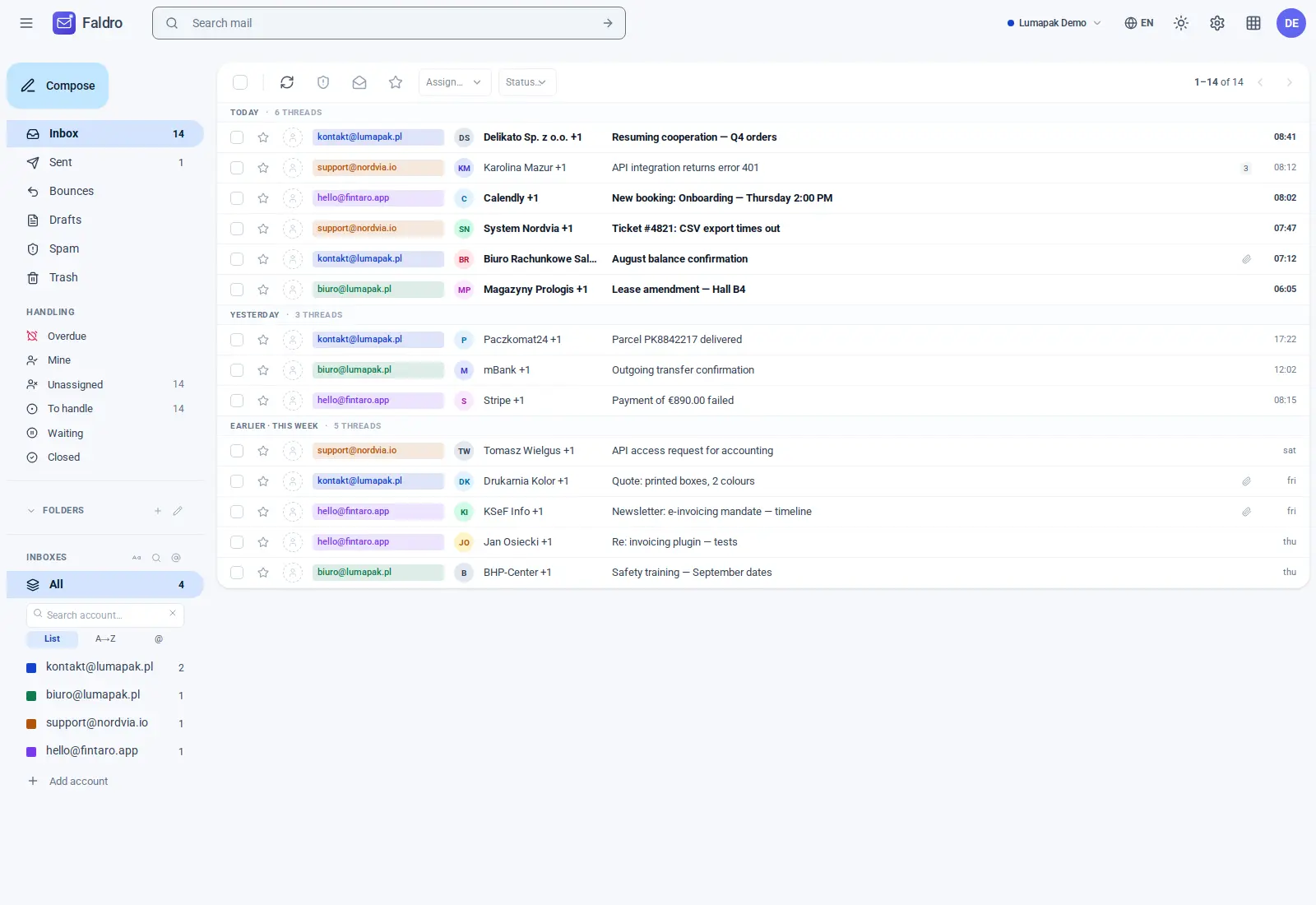
The Mailbox screen has three parts: the left sidebar, the thread list (or an open thread) and the header at the top. Clicks in the sidebar, in the list and on the page arrows swap only the middle of the screen — the page doesn't reload, and the browser's back button works as usual.
Left sidebar
From top to bottom:
| Section | What it holds |
|---|---|
| New message | Opens the composer. Visible to anyone allowed to send. |
| Mailboxes | Inbox, Sent, Bounces, Drafts, Scheduled, Spam, Trash. Shared across all of the organisation's accounts — "Inbox" is mail from every mailbox at once. The number next to each is the count of threads in it. |
| Handling | The team's work queues: Overdue, Mine, Unassigned, To handle, Waiting, Closed. They narrow the current folder — see Customer support. |
| Folders | Custom IMAP folders, grouped by account. See Folders and drag-and-drop. |
| Multi-Inbox | Named groups of accounts, e.g. "Sales". Clicking one shows threads from the group's accounts only — see Multi-inboxes. |
| Labels | The organisation's coloured tags. Clicking one filters the list, clicking it again removes the filter — see Labels. |
| Accounts | "All" plus every connected mailbox, with a coloured square and an unread counter. |
Above the account list there's a Search account… field and three modes: List (default order), A→Z and @ Domain (grouped by email domain). The Aa button switches between showing the email address and the mailbox label. Your browser remembers these settings.
On a phone the sidebar is tucked behind the Menu button (three lines) in the top-left corner.
Thread list
Threads are grouped into Today, Yesterday, Earlier · this week and Older. Each row shows: a checkbox, a star, the assignee (a square with initials, or "—"), the account address in the mailbox's colour, the sender, labels, the subject with a snippet of the latest message, and on the right: a paperclip and attachment size, the number of messages in the thread and the time or date.
- Click a row to open the thread; Ctrl+click (Cmd+click on a Mac) opens it in a new tab.
- Clicking the account address in a row narrows the list to that mailbox.
- Bold rows are threads with unread messages.
Above the list you can see what you're looking at (e.g. INBOX / all accounts) and the time of the last sync. The Sync button in the toolbar fetches mail right away — for the selected account or for all visible ones.
Filter chips
When the list is narrowed down, a Showing: row with chips appears above it, e.g. "Account: office@company.com", "Label: Invoices", "Folder: Sent". The × on a chip removes just that one filter; Show everything takes you back to the Inbox of all accounts.
Bulk actions
Tick threads with their checkboxes (or all on the page with the box in the toolbar). The counter shows "N selected" and the buttons become active:
| Button | What it does |
|---|---|
| Archive | Removes the threads from the Inbox. The confirmation has an Undo button. |
| Read | Marks every message in the threads as read. |
| Spam | Moves the threads to the spam folder on the server. |
| Delete | Moves the threads to Trash on the server. |
| star | Stars the threads. |
| Assign…, Status… | Only for people handling a shared inbox — see Assignments and statuses. |
Which buttons you see depends on your permission scope: "View only" has no checkboxes, and "View + send" has neither Archive nor Delete.
While an action runs, its button shows a spinner and can't be clicked twice. The result appears as a small notice in the corner of the screen; if something fails (no network, session expired), the notice says why and the list stays as it was.
Empty folder
An empty folder shows "No messages in this folder." and a button back to the Inbox. The exception: a link to a custom folder that has been deleted or renamed on the server takes you straight to the Inbox.
Header
- The search bar ("Search across all accounts") searches the active organisation's mail, including operators such as
from:,in:,has:attachment— see Search. - The organisation switcher — a coloured square with the organisation's name.
- Language (PL / EN / DE) and light/dark theme — see Keyboard shortcuts and appearance.
- Settings (the gear) and the profile menu with your initials.
New mail without reloading
New messages appear in the list by themselves, usually a few seconds after reaching the server, and their row briefly lights up. If you're in the middle of selecting something or reading a thread, the list waits and a "+N new" button appears in the header. Details: New mail and multiple tabs.
If a mailbox's server stops responding or rejects the password, a banner above the list names the mailbox and the time of its last successful sync. Mail fetched earlier stays readable and searchable. What to do: Help: mailbox isn't fetching new mail.
Opening a thread
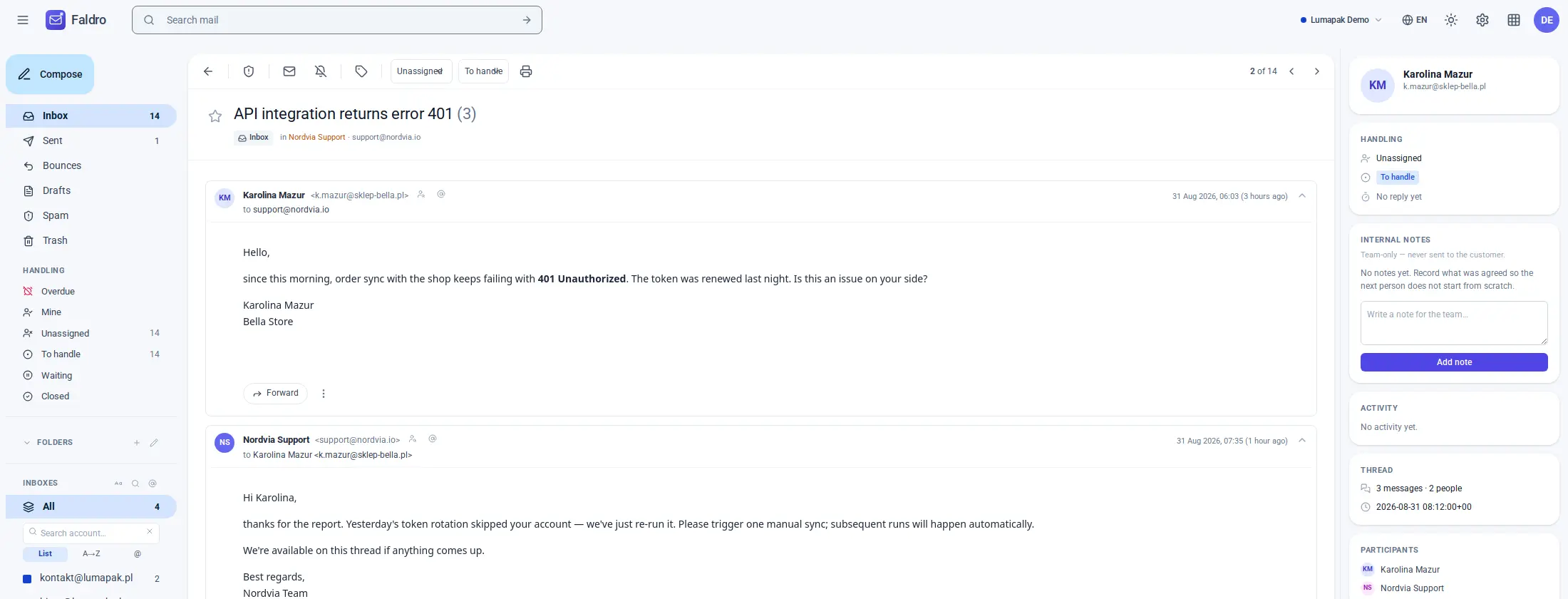
A thread shows its messages in chronological order, each in an isolated frame. Above it are the actions (archive, spam, delete, mute, labels); at the bottom is the reply form. Details: Thread.
Did not find the answer?
Check the help section with typical problems or write to us — we reply on working days.