Search
The search bar in the header, what gets searched, the from:, to:, subject:, in:, has:, is:, before: and after: operators, result scope and pages.
Updated 19.10.2026
Table of contents
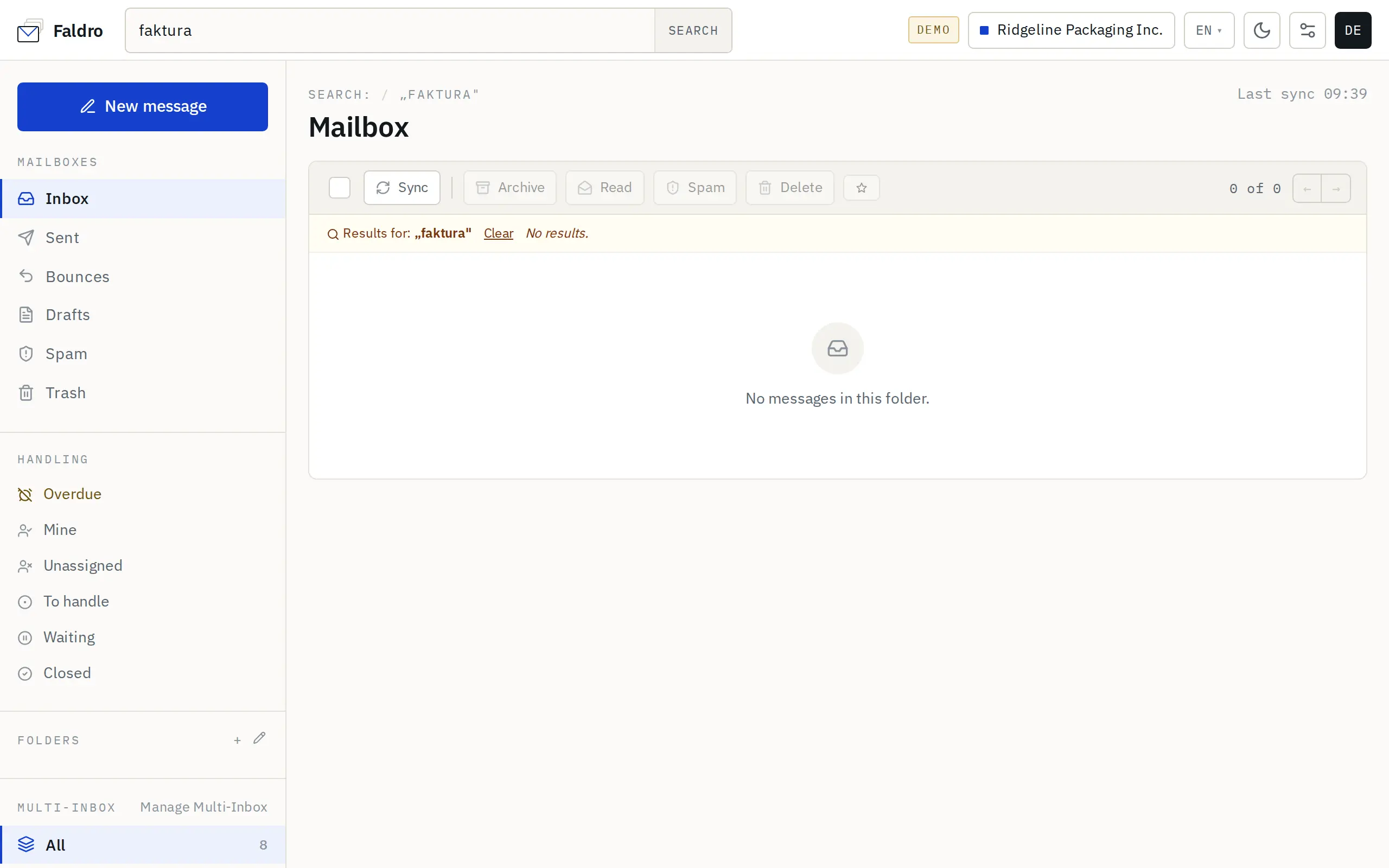
The Search across all accounts bar in the header searches the active organisation's mail — every mailbox at once. Type a query and press Enter or click Search.
What gets searched
The subject, message snippet, sender name and address, recipient addresses and the full text body. Search tolerates typos, and results are sorted newest first.
Not searched:
- attachment contents (text in PDFs, spreadsheets etc.) or file names — use
has:attachmentto narrow down to messages with attachments; - labels, assignments and internal notes — use the filters in the left sidebar for those.
A new message becomes searchable after sync. Results for the same query are cached for a minute, so a message that has just arrived may show up with a short delay.
Operators
Type operators into the same box, with or without ordinary words. Put values containing spaces in quotes.
| Operator | Meaning | Example |
|---|---|---|
from: |
Sender address contains | from:jane@company.com, from:@company.com |
to: |
Recipient address contains | to:office@ |
subject: |
Subject contains | subject:"invoice 10/2026" |
has:attachment |
Only messages with an attachment | contract has:attachment |
is:unread / is:read |
Only unread / read | is:unread from:@bank.com |
after: / before: |
Received from / until a date | after:2026-09-01 before:2026-10-01 |
in: |
One folder only: inbox, sent, drafts, spam, trash, bounces; in:anywhere — everywhere |
in:sent quote |
Operators can be combined — all conditions must hold at once. Dates are safest in YYYY-MM-DD format.
By default, results leave out Spam and Trash. To include them, add in:anywhere (or in:spam, in:trash). When a query with an operator finds nothing but matching messages sit in Spam or Trash, a hint with a Search anywhere button appears above the list.
Archived and muted threads show up in results as normal — it's the easiest way to find them again.
Results
Results appear in the usual thread list: one row per thread, even if several of its messages match. Above the list there's a "Search: "query"" chip — its × or Clear takes you back to the Inbox.
- Each page holds 50 threads; the ← → arrows move between pages.
- Search returns at most a few thousand threads — for a very broad query, add a word or an operator.
- Bulk actions work on the results just as they do in folders.
When you open a thread from the results, the query is highlighted in the subject, sender and body. The ← → arrows (and the k / j keys) step through the matches — across all pages, not just the current one — and ← Search: takes you back to the results.
Searching straight from a thread
Each message header has Show messages from this sender (from:address) and Show messages from this domain (from:@domain) icons, and below the body there's a Filter messages like this button. Each of them opens a ready-made search.
Scope
Search always covers the whole active organisation, regardless of which folder, account, multi-inbox or label is selected in the sidebar. A member whose access is limited to selected mailboxes only sees matches from those mailboxes. To search another organisation, switch to it in the header.
No results even though the message is definitely there? Check whether the mailbox is fetching mail — Help: mailbox isn't fetching new mail.
Did not find the answer?
Check the help section with typical problems or write to us — we reply on working days.