Members and invitations
Inviting people to the organisation, the invitation link, re-sending and revoking, changing permissions, removing members and the "at least one admin" rule.
Updated 19.10.2026
Table of contents
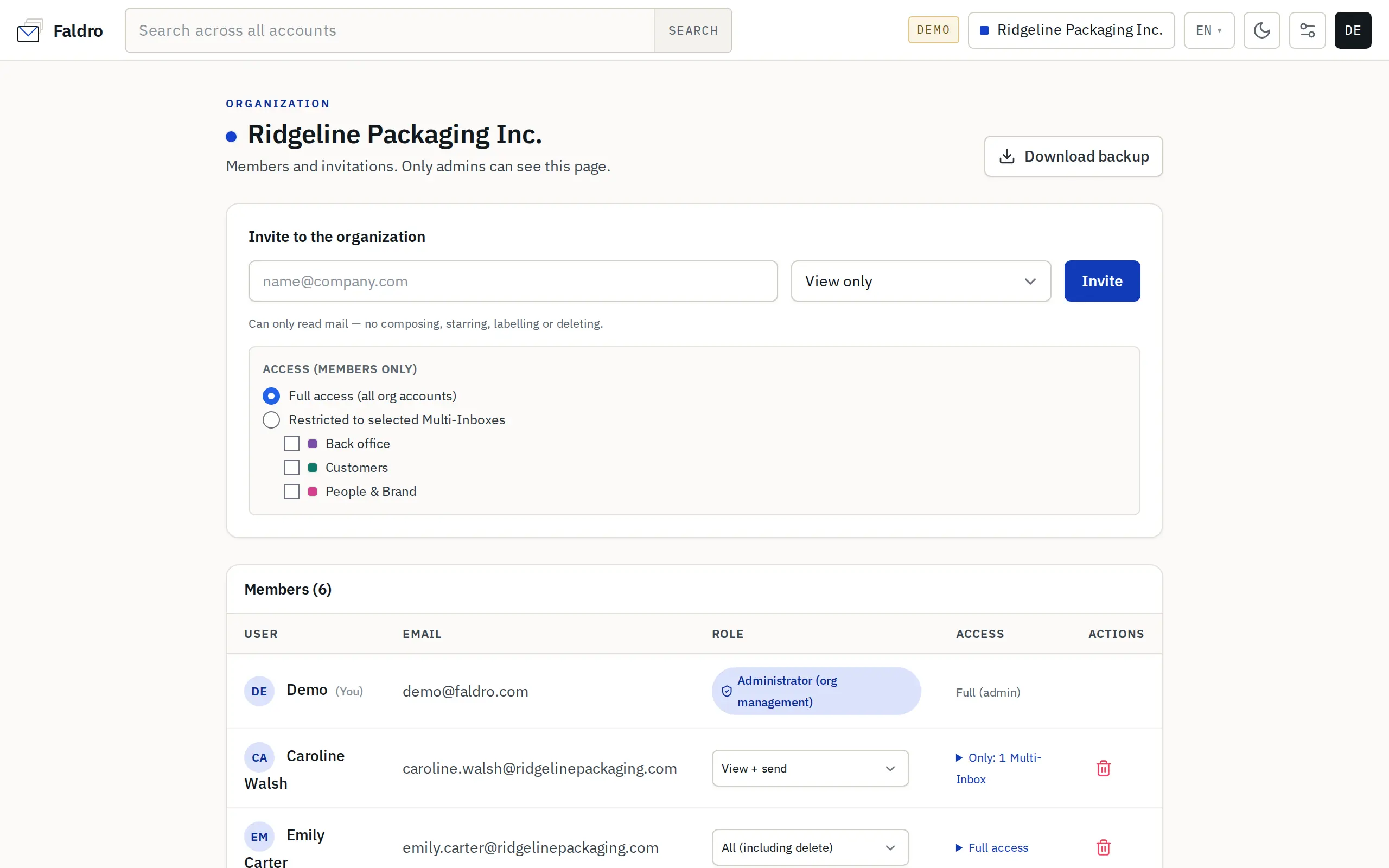
The Members screen shows who has access to the active organisation and lets you invite more people. Only admins can see it. Open it from Settings → Members, from the organisation switcher (Invite + manage members) or with the Members link above the accounts list in the left sidebar.
Inviting someone
In the Invite to the organization section, enter an e-mail address, pick a permission scope and click Invite. Below the picker a one-line hint explains what the chosen scope allows — the full comparison is on the Permission scopes page.
For any scope other than administrator, you can restrict access right away in the Access (members only) box:
- Full access (all org accounts) — the person sees every mailbox in the organisation;
- Restricted to selected Multi-Inboxes — they see only the accounts in the ticked multi-inboxes. At least one must be ticked. How it works: Multi-inboxes.
What happens next depends on the address:
| Address | Result |
|---|---|
| Already has a Faldro account with a confirmed address | The person is added immediately with the chosen scope. They get an e-mail letting them know, with a button to the app; they pick the organisation in the switcher. |
| Has no account (or the address isn't confirmed) | An invitation with a one-time link valid for 7 days is created. The person gets an e-mail with an Accept invitation button. |
| Is already a member of this organisation | Nothing changes; the screen shows a message saying so. |
After sending, the message at the top of the screen also contains the link itself — handy if the e-mail doesn't arrive.
Accepting an invitation
The link opens a page with the organisation's name, the role, who sent the invitation and when it expires.
- Signed in with the invited address — Accept invitation joins the organisation and makes it active right away.
- Signed in with a different address — Faldro refuses and asks you to sign out. An invitation is tied to one specific e-mail address.
- Not signed in, account exists — Sign in or register takes you to sign-in; after that you join automatically.
- Not signed in, no account — you go on to registration. Register with the same address the invitation was sent to — then no separate organisation is created and you land in the inviting one.
Pending invitations
Invitations that haven't been used or expired sit in the yellow Pending invitations box — with the address, scope, any multi-inbox restriction and time left until expiry.
| Button | Action |
|---|---|
| Re-send | Sends the e-mail again. The link doesn't change, so an old one keeps working. |
| Copy link | Copies the link to the clipboard so you can pass it on another way. |
| Revoke | Deletes the invitation; the link stops working. |
An expired invitation disappears from the list. Just send a new one — inviting the same address again is allowed.
The member list
The table shows name, e-mail, Role (permission scope) and Access (full, or restricted to multi-inboxes). Picking a new scope from the dropdown saves immediately, without reloading the page. Access expands a form with the same options as the invitation; confirm it with Save. Admins always have full access.
The bin icon in the Actions column removes the person's access to the organisation (after confirmation). Their Faldro account and their membership in other organisations stay.
The "at least one admin" rule
An organisation always has at least one admin. That means:
- the last admin can't be removed or demoted — Faldro rejects the change with a message;
- you can't change your own row: next to you (marked (You)) there's no scope dropdown and no bin. Another admin can change your role.
The number of people in an organisation isn't limited on any paid plan or during the trial. Once the trial ends without a subscription, the organisation can have one person — inviting another then ends with a limit message. Pending invitations count towards that limit.
Re-sent invitations, scope and access changes, and member removals are recorded in the audit log.
Did not find the answer?
Check the help section with typical problems or write to us — we reply on working days.