Multi-inboxes
Named groups of accounts as a filter in the left sidebar and as the boundary of what a member with restricted access can see.
Updated 19.10.2026
Table of contents
A multi-inbox (in the app: Multi-Inbox) is a named, colour-coded group of mail accounts, e.g. "Sales" = office@, quotes@ and sales@. It does two jobs:
- Filter — one click in the left sidebar shows only the mail from that group's accounts.
- Access boundary — a member with restricted access sees only the mailboxes in the groups you pick; the organisation's other accounts are invisible to them.
One account can belong to several multi-inboxes.
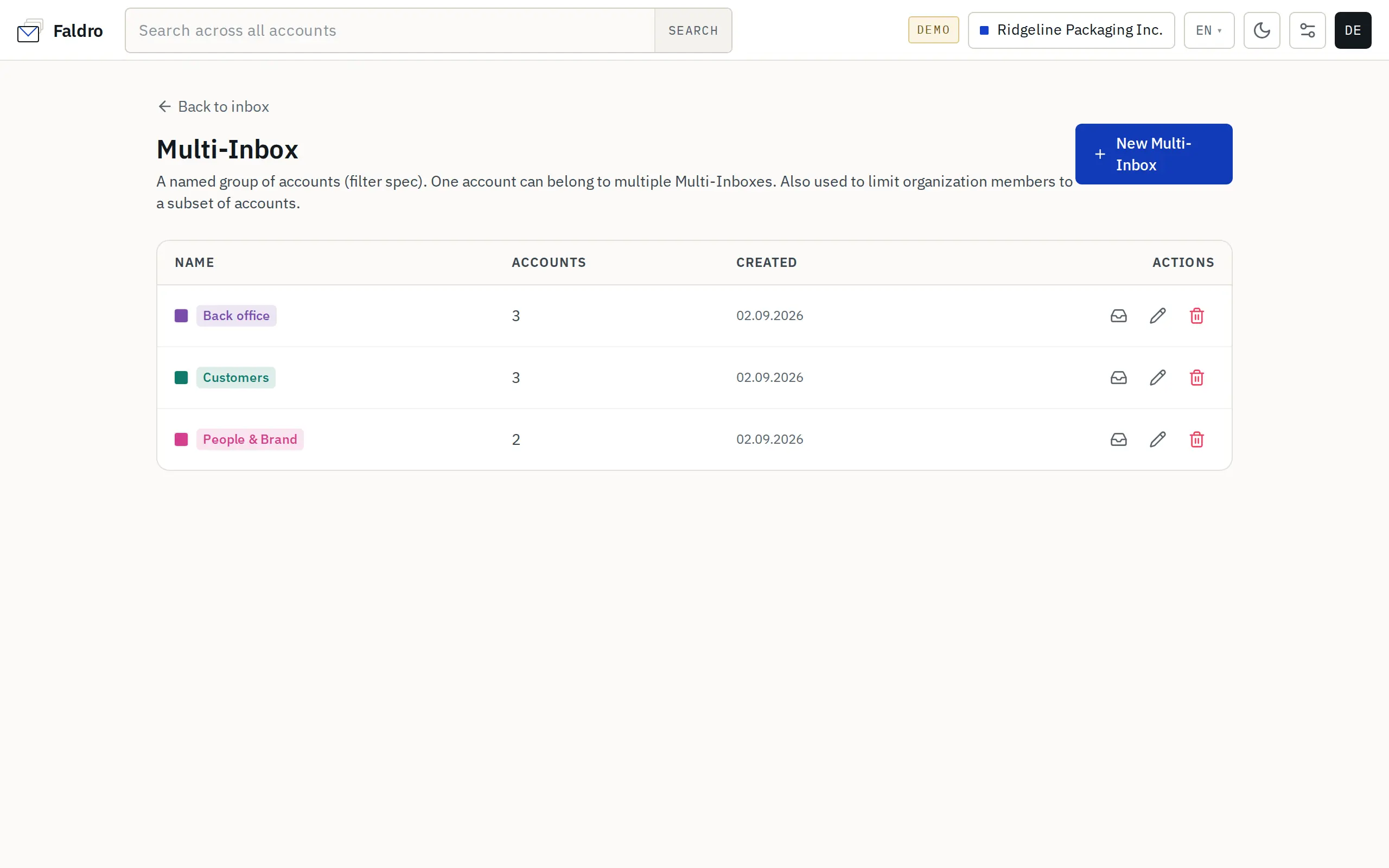
Creating and editing
Multi-inboxes are managed by an admin: Settings → Multi-inboxes or the Manage Multi-Inbox link in the Multi-Inbox section of the left sidebar. The list shows the name, the number of accounts and the creation date, with Open, Edit and Delete buttons.
New Multi-Inbox opens the form:
| Field | Meaning |
|---|---|
| Name | What the group is called in the left sidebar (up to 120 characters). |
| Color | The group's marker in the sidebar and in pickers. |
| Accounts in this group | Checkboxes with every account in the organisation. If there are no accounts yet, the form points you to Add the first account. |
Save with Create Multi-Inbox (or Save changes when editing). A change to the group's accounts takes effect immediately — including for members whose access is restricted to it.
Multi-inbox as a filter
The Multi-Inbox section of the left sidebar shows an All entry (every account you can see) and each group with its account count. Clicking a group narrows the thread list to its accounts; folders (Inbox, Sent and so on) keep working within the group. When the organisation has no multi-inboxes yet, admins see an + Add Multi-Inbox link there.
Who sees which groups in the sidebar:
- admins and members with full access — all of the organisation's multi-inboxes;
- members with restricted access — only the ones assigned to them.
Multi-inbox as an access boundary
On the Members screen, in the Access column, choose for a member:
- Full access (all org accounts), or
- Restricted to selected Multi-Inboxes, ticking at least one group.
You can set the same thing when inviting. A restricted member sees only the accounts in their multi-inboxes — this applies to the thread list, search, drafts, scheduled messages, the sender picker in the composer, sending identities and live new-mail notifications.
The restriction combines with the permission scope: the scope decides what a person can do, the multi-inboxes decide on which accounts. Admins are never restricted.
Deleting a multi-inbox leaves the accounts themselves alone, but removes members' assignments to that group. A member restricted only to the deleted group stops seeing any mail at all — before you delete it, assign them to another group or give them full access.
Good practice
- Build groups around departments or tasks ("Sales", "Complaints", "Invoices"), not people — then a new hire just needs a ready-made group ticked.
- When you connect a new mail account, add it to the right multi-inboxes straight away; otherwise restricted members won't see it.
Creating, changing and deleting a multi-inbox is recorded in the audit log.
Did not find the answer?
Check the help section with typical problems or write to us — we reply on working days.