Thread
Messages in a thread, content in an isolated frame, collapsed quotes, attachments and preview, the original .eml, very large messages and thread actions.
Updated 19.10.2026
Table of contents
A thread is the whole conversation — every message with the same subject and reply history, even if they arrived in different mailboxes of the organisation. Open it by clicking its row in the list. Unread messages are marked as read the moment you open the thread.
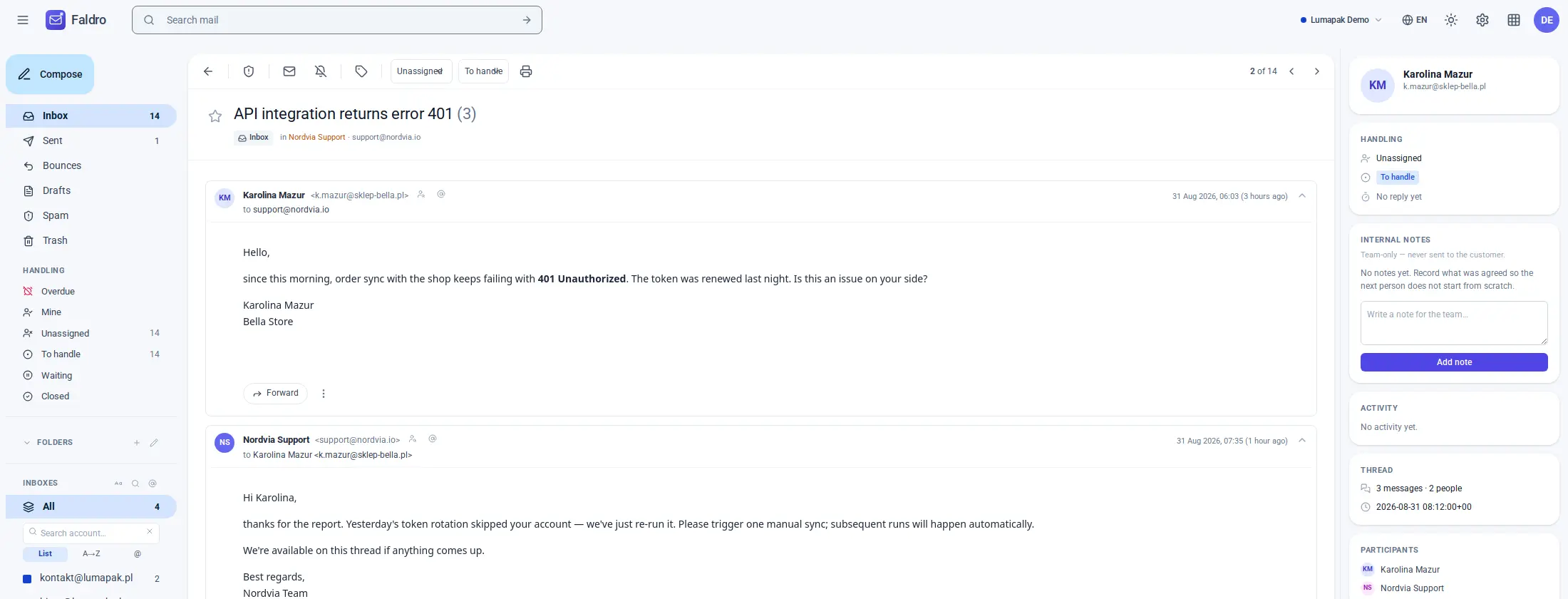
Action bar
Above the thread there's a row of buttons:
| Button | What it does |
|---|---|
| ← Inbox (or the folder name) | Back to the list, at the same spot. If you came from search: back to the results. |
| Archive | Takes the thread out of the Inbox and returns to the list. The notice has an Undo button. In an archived thread the button reads Restore. |
| Spam | After confirmation, moves the thread to the spam folder on the mail server. |
| Delete | After confirmation, moves the thread to Trash on the mail server. |
| Unread | Marks the thread as unread and returns to the list. |
| Mute | Hides the thread from the Inbox. Clicking again (the button then reads Muted) unmutes it. |
| Labels | A list of labels to tick — see Labels. |
| Prints the thread through the browser. |
On the right are the thread's position (e.g. "3 of 48") and the ← → arrows to the previous and next thread in the same folder or the same search results. In organisations that use customer support, the bar also has assignee and status dropdowns, with a column of notes and history on the right — see Customer support.
Archive, star and mute work inside Faldro only — on the mail server the messages stay in their folder. Spam and Delete move the messages on the server, in every mailbox where the thread has messages.
Archived and muted threads aren't in the Inbox, but search still finds them.
Messages
Each message is a card with a header: the sender's initials and name, address, recipients (to, cc), the date and relative time ("2 hours ago"). Clicking the header collapses or expands the card. Next to the sender's address are two icons: Show messages from this sender and Show messages from this domain — both open a search.
HTML content is shown in an isolated frame: scripts in the message can't reach your session, links open in a new tab, and images load without telling the sender the address you're viewing them from. Messages without HTML are shown as text with their line breaks preserved.
Collapsed quotes
When someone replies above (or below) a quote, the old conversation history is collapsed into a ··· button ("Show trimmed content"). New text always stays visible — above, below or between quotes. This works for quotes from the common mail clients (Gmail, Outlook, Apple Mail, Thunderbird, Yahoo, Proton and others). If a message is nothing but a quote — a forwarded message, say — nothing is collapsed.
Attachments
Below the message body is the list of attachments with name and size. Images (JPG, PNG, GIF, WebP) and PDFs open in a preview on the same page when clicked, with a download button; close it with Esc or by clicking outside. Other files download straight away.
Large attachments have a dashed border and an on demand badge: they aren't stored in Faldro but fetched from the mail server when you click them. The message "Attachments are present in the original — re-sync the account to fetch them" means fetching the attachments failed during sync.
Below every message
- Forward — the form for forwarding this particular message (Replying and forwarding).
- Show original (.eml) — downloads the raw message with all its headers, e.g. for an abuse report or a delivery investigation.
- Filter messages like this — searches for every message from this sender.
Replying
At the bottom of the thread is Reply as with the address of the mailbox the message arrived at. Clicking it expands the reply form with the editor, signature and templates — see Replying and forwarding. "SMTP not configured" means no outgoing server has been set up for that mailbox.
Very long threads
In a thread with many messages, Faldro first shows only the newest ones (50 by default) with the notice "Showing the newest N of M messages". Show all (M) loads everything — with hundreds of messages this can take a while.
Very large messages
Sync doesn't download messages over 15 MB (usually ones with a big attachment) in full: Faldro fetches only their text part from the server and adds a note with the original size below it. You can download the complete message with its attachments via Show original (.eml).
If even the text couldn't be extracted, the body is replaced by a box reading "Message body was not fetched during sync" with a Fetch full body button — it pulls the body and attachments from the server on demand.
Did not find the answer?
Check the help section with typical problems or write to us — we reply on working days.